VerbMaster Teacher Guide

Module 4: Using VerbMaster in Your Classroom

VerbMaster was built to bring research-based learning methods (mastery learning, spaced repetition, multimodal practice) into a tool that's easy for both teachers and students. This module will show you how to set up your classes, assign work, and track progress — step by step.

4.1 Instructor Setup

Part 1: Instructor Sign Up

1

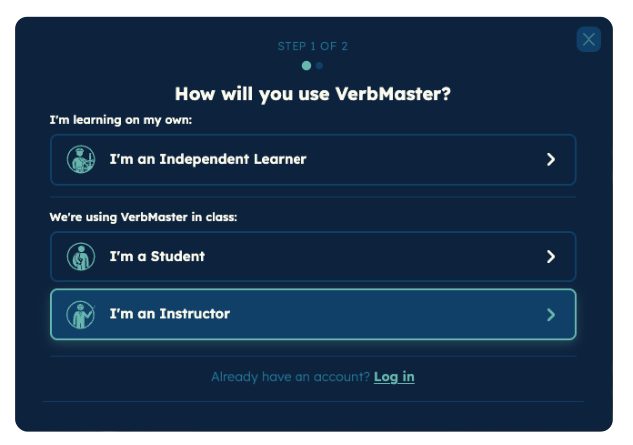
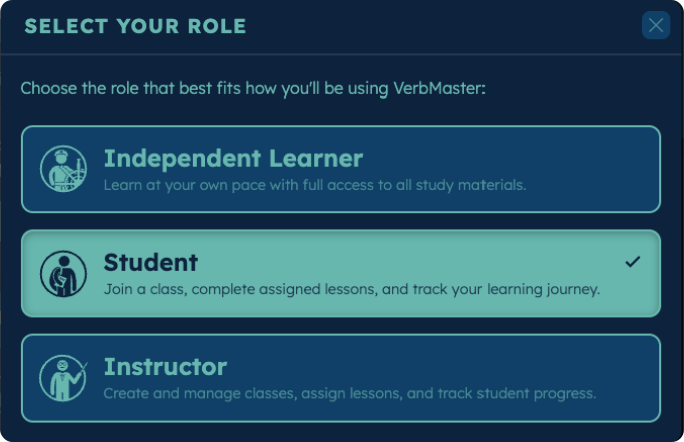
Select "I'm an Instructor" under "We're using VerbMaster in class."

Select instructor role
2

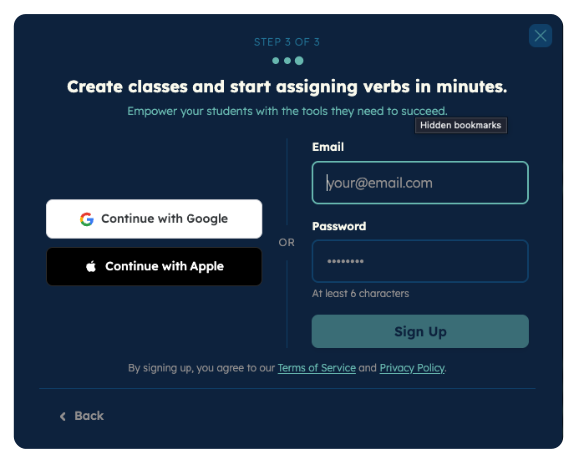
Sign up with your school email address (this will be the email we connect to your school/district's license).

Sign up with school email
3

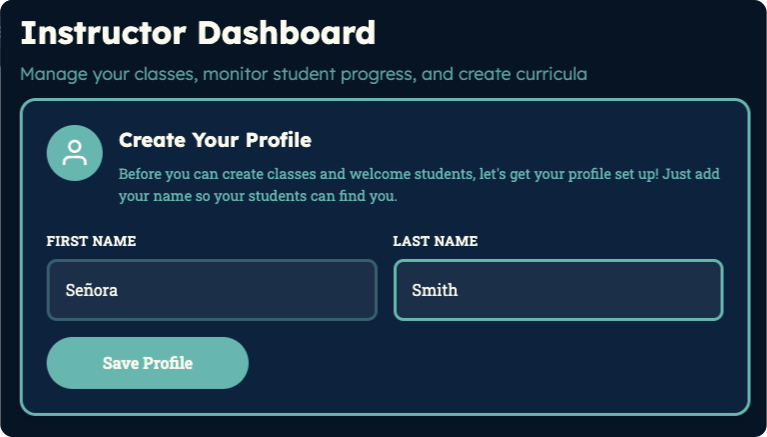
Create a profile so your students can find your classes.

Create a profile

Part 2: Create Your Class

1

On your dashboard, tap CREATE NEW CLASS on your My Classes tab.

Create new class button
2

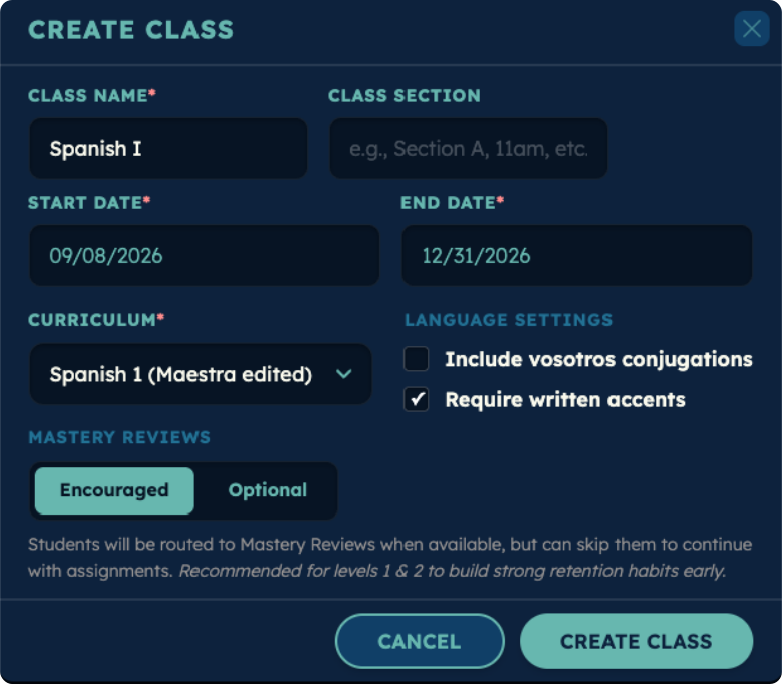
Enter your class details like name, section, start and end dates.

Enter class details
3

Choose class settings for exams, yearlong, and student age definitions.

Class settings
4

Now tap CHOOSE CURRICULUM and give it a name.

Choose curriculum

*You can reuse this curriculum for as many classes as you like.

5

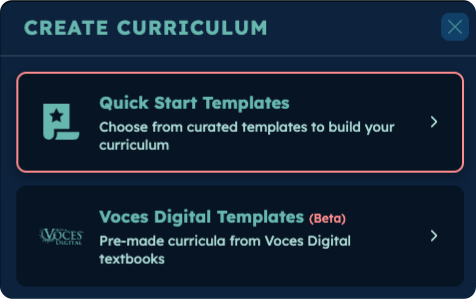
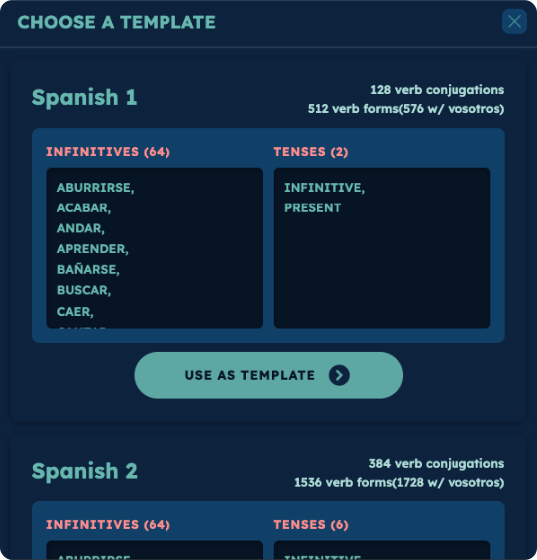
Choose your verbs and tenses. We recommend starting with one of our Curated Templates to match your class's Spanish level and editing from there.

Curated templates selector
Spanish I template showing verbs and tenses

Each template includes 64 essential verbs covering all irregular forms in the tenses your students will encounter at that level.

6

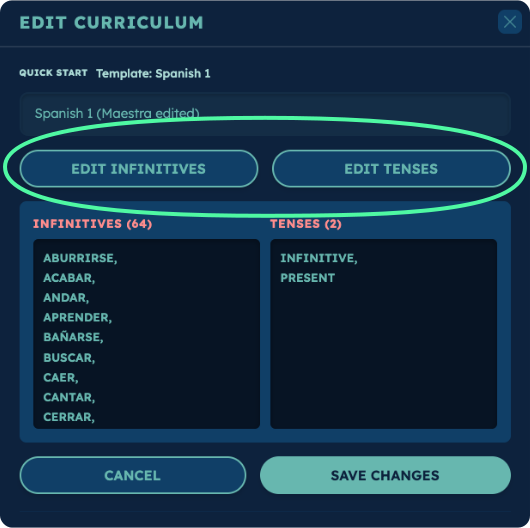
Use the Edit Infinitives and Edit Tenses buttons to customize your curriculum.

Edit infinitives and tenses
7

Once you're happy with the content, save your curriculum. Then select USE FOR CLASS.

Save curriculum and use for class
8

Now save your new class and it will appear on your dashboard.

Class on dashboard
9

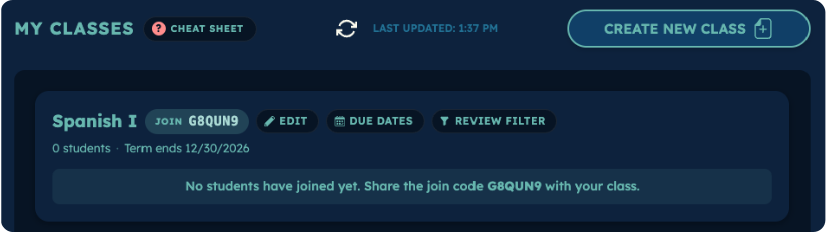
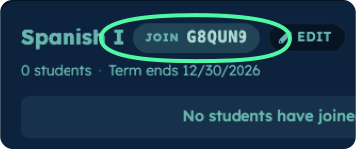
Find the 6-digit join code at the top of your class card and share it with your students so they can join.

Join code on class card
10

At the top of your dashboard, press the refresh button to see if all students have successfully joined.

Refresh to check student enrollment

About Your Curricula

Once you create a curriculum, you can reuse it across multiple classes. The verbs, tenses, and assignments will stay the same, and any edits you make will update for every class that is using that curriculum. Due dates, however, can still be customized separately for each class.

Part 3: Edit Your Assignments

You can edit the content of your assignments on your My Curricula tab:

1

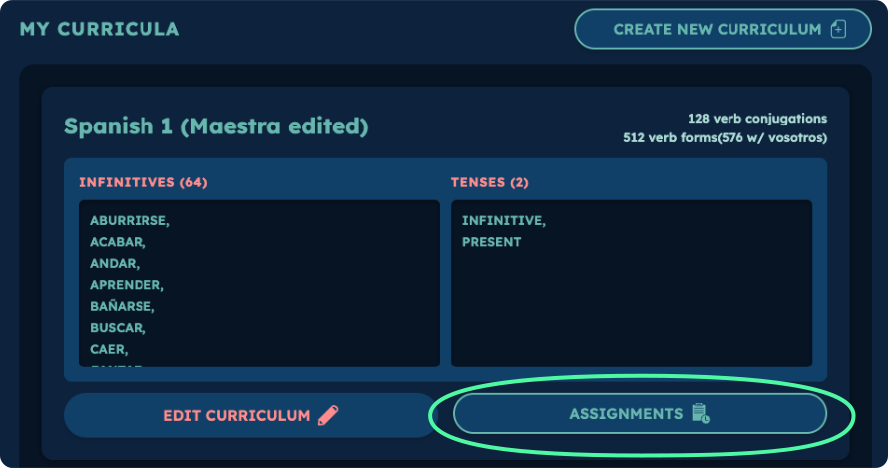
Click Assignments on a curriculum card to view all generated assignments.

View assignments on curriculum card
2

Adjust the number of assignments at the top of the screen to match how many weeks you plan to assign.

Adjust assignment count
3

Use the Edit button under each assignment to adjust verbs or tenses.

Edit individual assignment
4

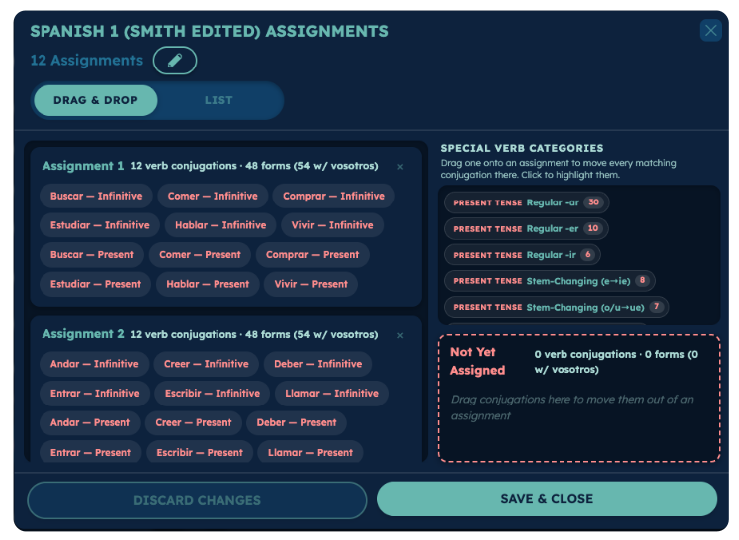
You can also add verbs by category, which pulls every verb from your curriculum that fits the category into the assignment.

Add verbs by category

Part 4: Set Assignment Due Dates

You can edit the due dates for each assignment on your My Classes tab:

1

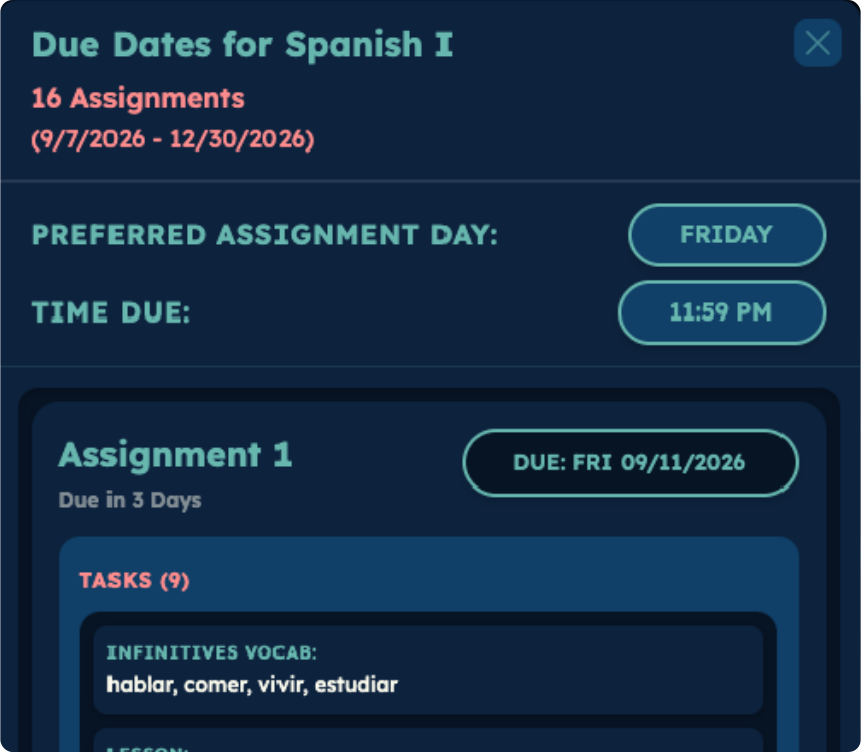
Assignment due dates appear on each class card in the My Classes tab. They are automatically distributed across the term dates for that class.

Due dates on class card
2

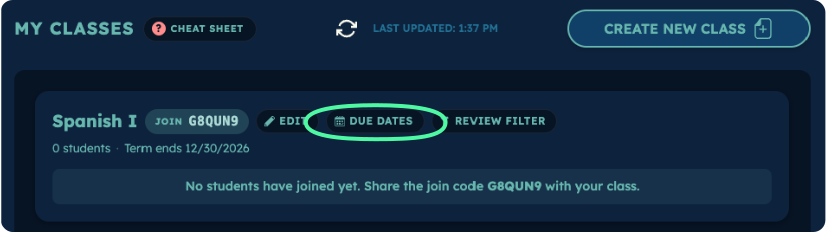
Tap the DATE button on a class card to adjust dating — chronological order works best.

Adjust date ordering
3

You can set a preferred day of the week and time at the top. This will automatically update all due dates to fit this day.

Set preferred day and time

4.2 Experiencing the Student Dashboard

Part 1: Join Your Own Class as a Student

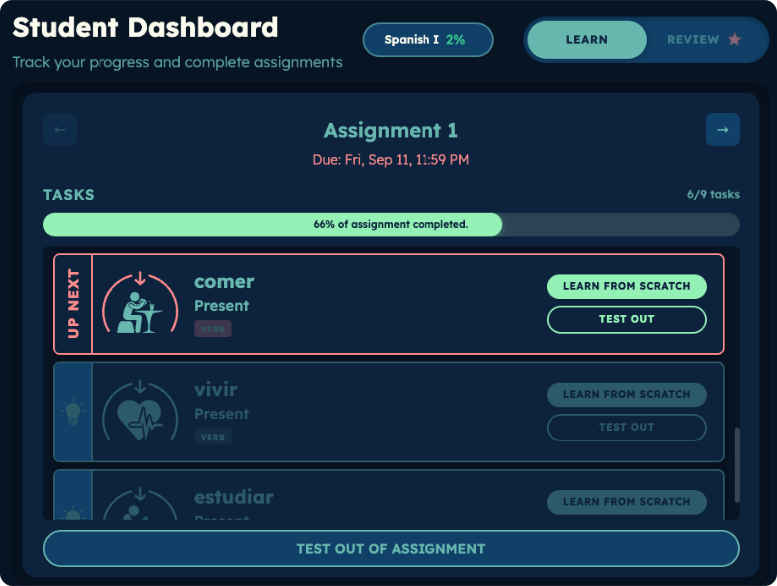
Switching to Student Mode lets you see VerbMaster exactly as your students do — assignments, practice, and progress tracking. This gives you valuable insight into the learning experience.
1

Write down your 6-digit join code from the class card.

Find join code on class card
2

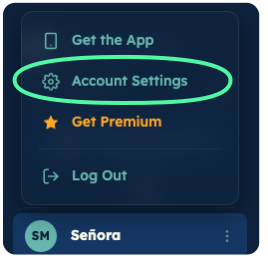
Tap the Main Menu in the top left and go to your Account Settings.

Open Account Settings
3

Under Career Role, change from Instructor to Student.

Switch to Student role
4

Reopen the Main Menu and click on the new Student Dashboard option.

Open Student Dashboard
5

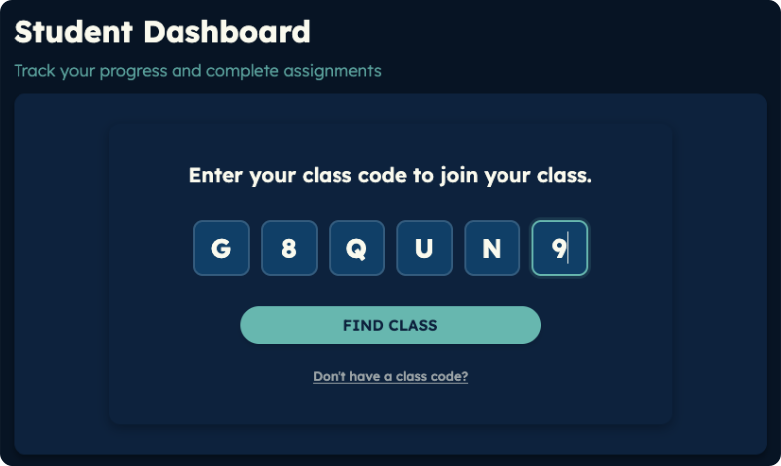
Tap JOIN A CLASS on the dashboard and enter the join code you wrote down.

Join a class with code
6

The first class assignment will now appear on your dashboard.

First assignment on dashboard

You can switch back and forth between Instructor and Student roles anytime under Account Settings. We recommend joining as a student at least once to better understand the learning experience.

Part 2: Inside an Assignment

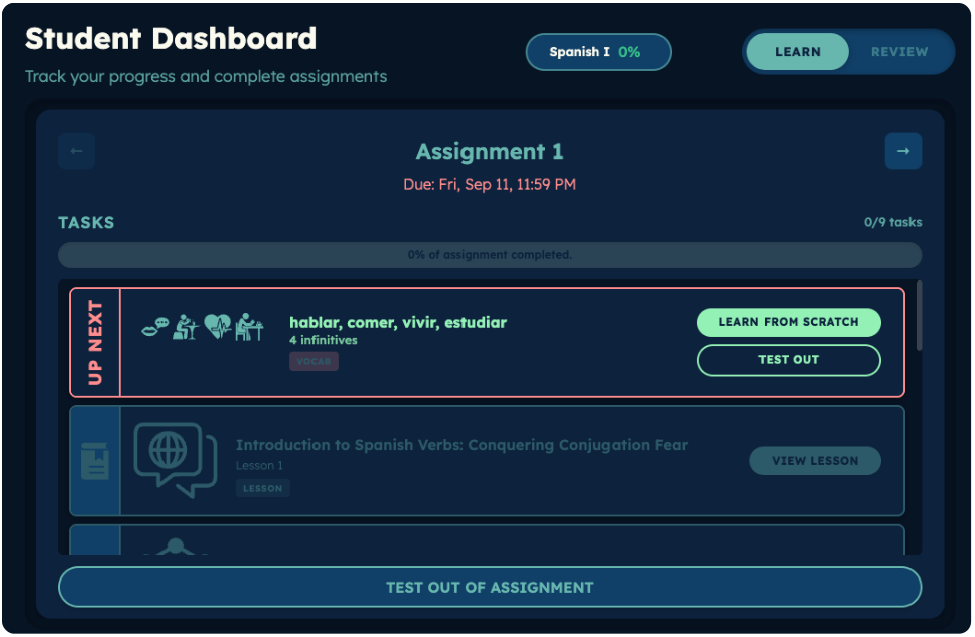
Each assignment is built from three task types your students will see when they log in. These tasks make sure they practice new material in different ways and keep it in memory.

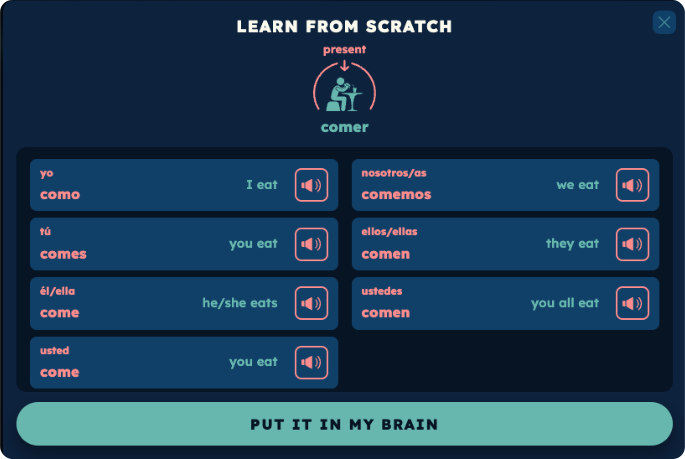
Lesson Cards

Lesson card task

Each lesson introduces a verb type in a specific tense, teaching students the patterns they'll need before they start practicing.

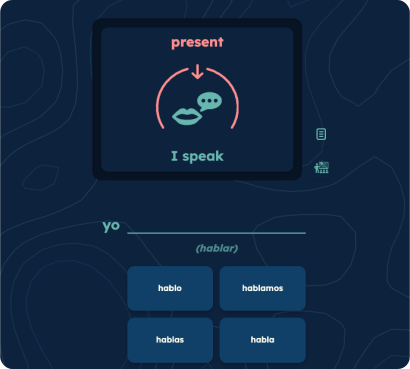
Verb Cards

Verb practice task

After each lesson, students practice verbs that use the concepts they just learned. Multiple-choice supports allow for different learning levels.

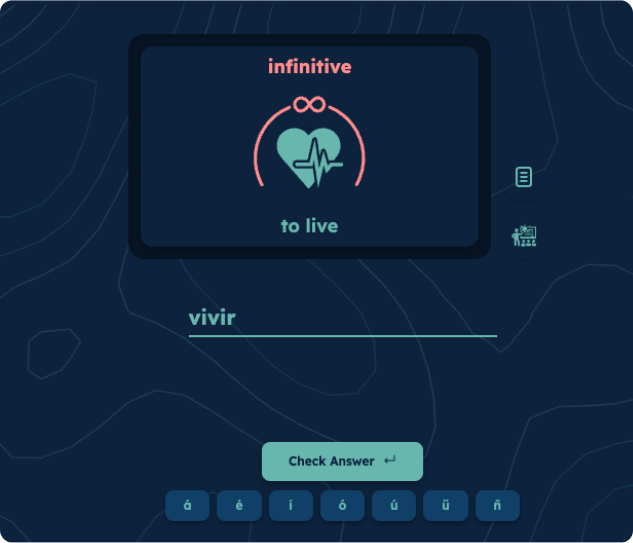
Infinitive Cards

Infinitive vocab task

Up to 8 infinitives are grouped in your practice so students can learn them more efficiently.

Student assignment showing Learn tab with lessons and verb tasks

Part 3: Initial Learning + Mastery Reviews

VerbMaster uses a two-step cycle: students first learn new verbs in the Initial Learning phase, then reinforce them through Mastery Reviews.

1. Initial Learning

Students start assignments on the LEARN tab, where they're introduced to new conjugations.

There are two ways to practice:

  • Learn from Scratch — Students work through multiple choice, then fill-in-the-blank questions ensuring they know each form well.
  • Test Out — For verbs they already know, students can skip directly to a fill-in-the-blank test. If they pass, the system moves their review to a later time.
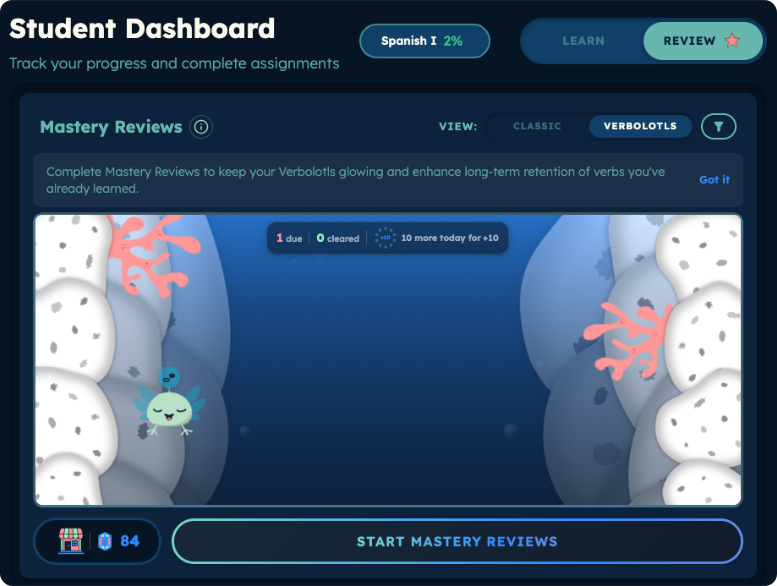
Review tab screen showing mastery review practice

2. Mastery Reviews

Once they've learned a verb form, students are automatically taken to the REVIEW tab when it's the optimal time to practice each form again. Mastery Reviews keep forms fresh by bringing them back just before forgetting sets in.

Zero reviews badge

Encourage your students to keep their Review counter at zero. Zero means they're caught up and retaining all forms; otherwise reviews are overdue and forgetting begins.
Class card showing Progress button

4.3 Monitoring Student Progress

Monitor Student Progress

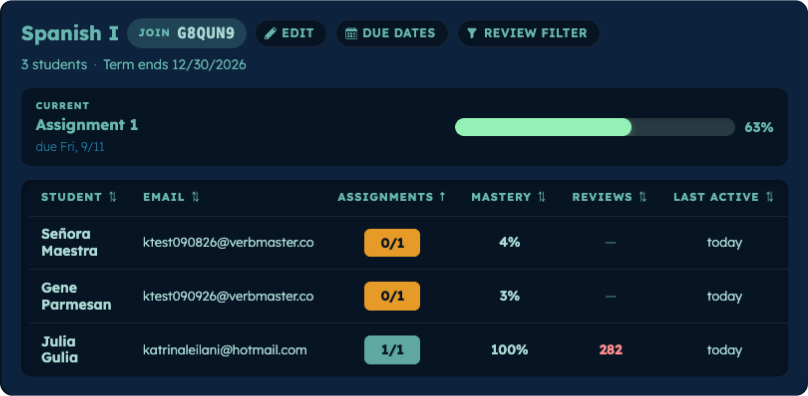
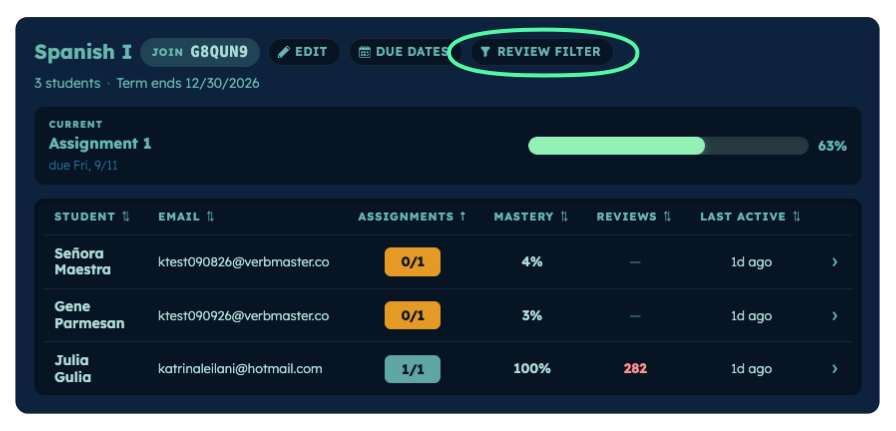
Click Class Progress on your class card to see how your class is doing. From here, you can view progress at three levels: individual assignments, the class as a whole, and each student's detailed results.

Assignment progress view

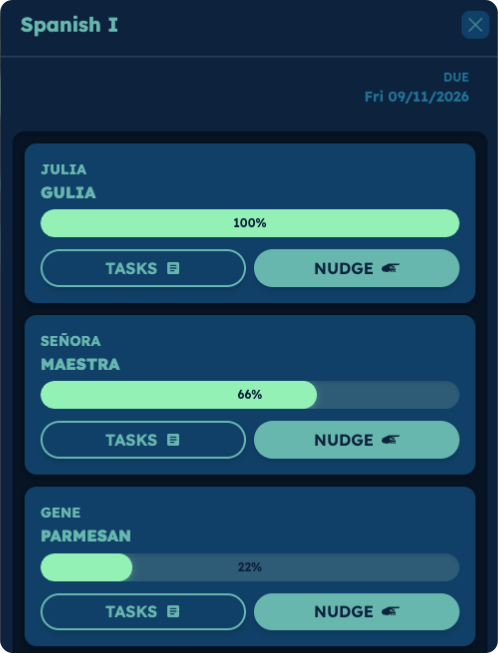
Assignment Progress shows completion rates for each assignment. Click STUDENT PROGRESS under an assignment to see how each student is progressing.

Individual assignment student progress detail
Mastery timeline chart

The Mastery Timeline shows how your class is progressing overall. The chart compares expected progress with actual mastery, so you can see at a glance if the class is on pace.

Student list with mastery data

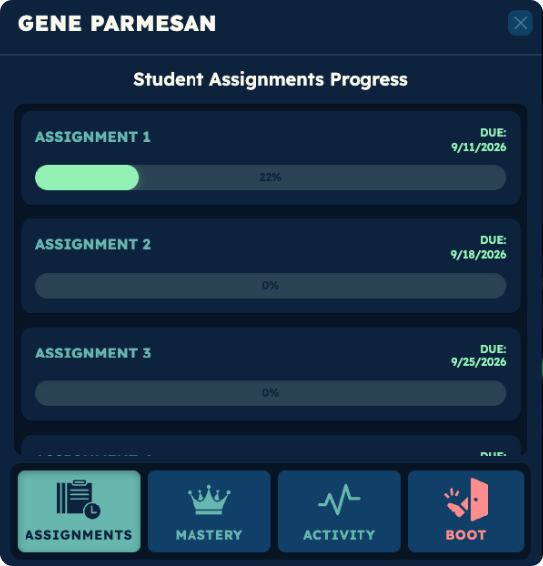
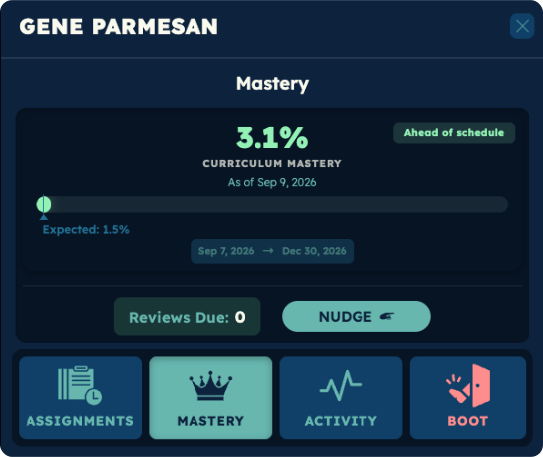
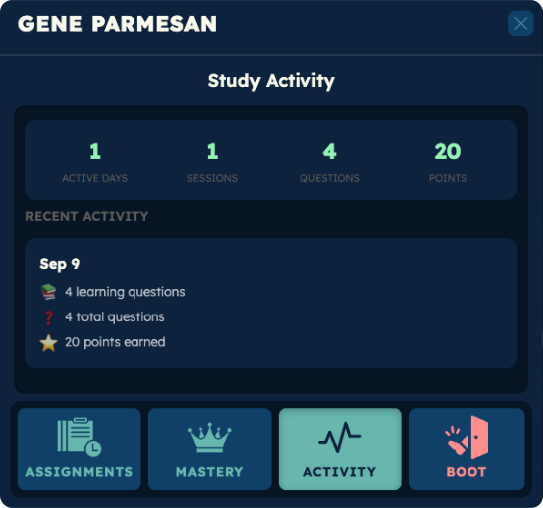
The Student List gives you a snapshot of each student's Expected Mastery vs. their Actual Mastery so far. This makes it easy to spot who's on track. We'll explore a student card in more detail below.

Individual student card detail

Quick Check